Skip to content
Parallax Learn

Parallax Learn

  • Welcome
  • Tutorials
        • Tutorial Series head tag

          Tutorial Series
        • Tutorial Series

          The special, classroom-ready series pages are organized collections of tutorials for our most popular hardware and/or languages. The tutorials for each topic are conveniently accessible from a single page, shown in the order it is recommended that they be completed.
        • Robotics Series Head tag

          Robotics Series
        • Robotics Series

          • Artificial Intelligence
          • Cybersecurity: Radio Data tutorialCybersecurity
          • cyber:bot + Python
          • cyber:bot + MakeCode
          • Boe-Bot Tutorial SeriesBoe-Bot
          • Arduino Shield-Bot
          • ActivityBot with C TutorialsActivityBot + C
          • ActivityBot with BlocklyProp Tutorial SeriesActivityBot + BlocklyProp
          • Scribbler 3 Tutorial SeriesScribbler 3
        • Electronics & Programming Series Head tag

          Electronics & Programming Series
          • BS2 Board of Education Tutorial SeriesBS2 Board of Education
          • Propeller C-Language BasicsPropeller C Basics
          • FLiP Try-It Kit C Tutorial SeriesFLiP Try-It Kit + C
          • FLiP Try-It Kit BlocklyProp TutorialsFLiP Try-It Kit + BlocklyProp
          • Badge WX Tutorial SeriesBadge WX
          • Propeller BlocklyProp Basics and ProjectsPropeller BlocklyProp Basics
          • View All Tutorial Series »
        • Browse Tutorials
        • Browse Tutorials

          Individual tutorials sorted by robot or kit, and language.
        • By Robot or Kit
          • ActivityBot
          • SumoBot WX
          • Boe-Bot
          • Shield-Bot
          • cyber:bot
          • Badge WX
          • ELEV-8
          • ARLO
        • By Language
        • By Language

          • Propeller C
          • Arduino
          • BlocklyProp
          • PBASIC
          • Python
          • MakeCode
          • View All Tutorials »
  • Educators
  • Reference
  • Downloads
  • Home
  • All Courses
  • ActivityBot 360° and Pixy2 for Color Object Tracking

ActivityBot 360° and Pixy2 for Color Object Tracking

Using BlocklyProp Terminal to Show Color Signatures

You’ve taught the Pixy2 which color signatures to recognize, and assigned each color to a number. In this tutorial, we will load the Pixy2TerminalDisplay.svg BlocklyProp code into the Propeller Activity Board and see each object’s position and size using the Terminal. The BlocklyProp program will receive and parse that data from the Pixy2, and then decide what to do with it.

  • Disconnect USB cable from the Pixy2. 
  • Connect the Activity Board’s 5V supply to the Pixy2 as shown in Power Supply Setup (B).
    • If you use the 5V supply from the black row of pins on top of the breadboard, put the Propeller Activity Board’s swich in Position 1 or 2.
    • If you use the 5V supply on the servo headers, put the Propeller Activity Board’s switch in Position 2.   
  • Download Pixy2TerminalDisplay.svg
  • Start BlocklyProp Launcher and solo.blocklyprop.com.
  • Click the Open Project / Choose File and open the Pixy2TerminalDisplay.svg you just downloaded.

This program has many functions to manage the serial data parsing from the Pixy2. These functions are shown in “collapsed” view (right-click a function if you want to expand it). You will not need to use most of these function blocks; it is convenient to keep their view collapsed.   
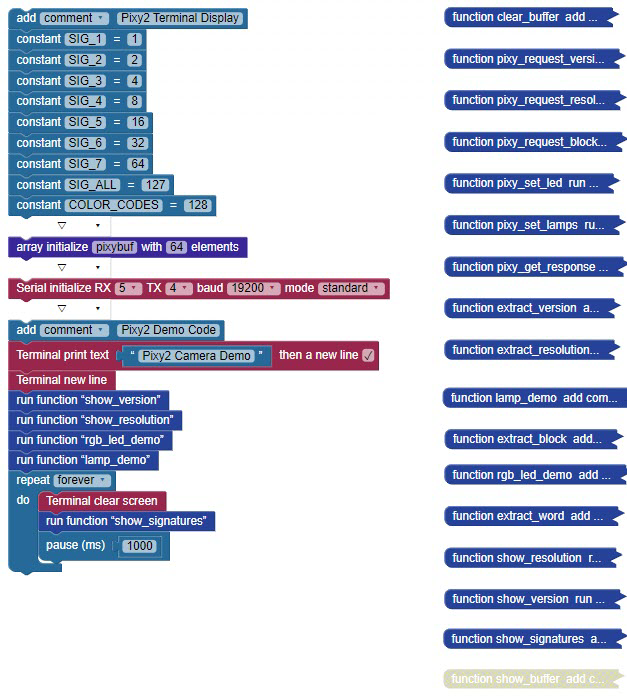
  • Click the Load and run (Save code to EEPROM) button. 

After loading code into the Propeller Activity Board, BlocklyProp Solo will open its Terminal and display information about colored objects that you have trained the Pixy2 to detect.  

  • Try placing some of those colored objects in the Pixy2’s view, and verify that its signature number, position and size are displayed.  

Congratulations! Your BlocklyProp program is now ready to be modified and used on the ActivityBot 360 to track objects!  
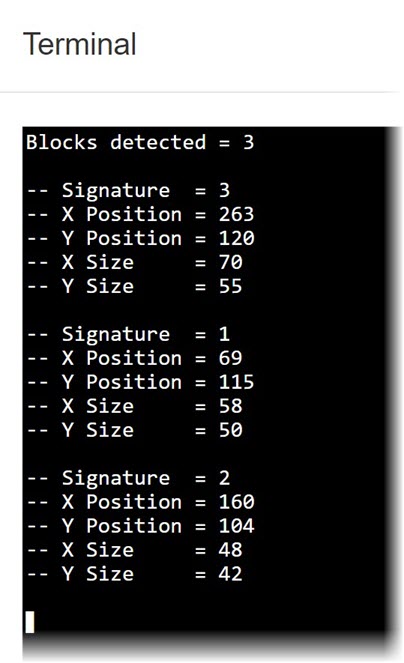
If you find BlocklyProp’s Terminal too slow to refresh, you can use Parallax Serial Terminal (PST) instead, which only runs on Windows operating systems. PST’s display may be paused or cleared and also supports multiple font sizes. To use PST: 

  • Download and unzip Parallax Serial Terminal. 
  • Double click Parallax-Serial-Terminal.exe to run it.  (No installation required.)
  • Press Close on the BlocklyProp Terminal.
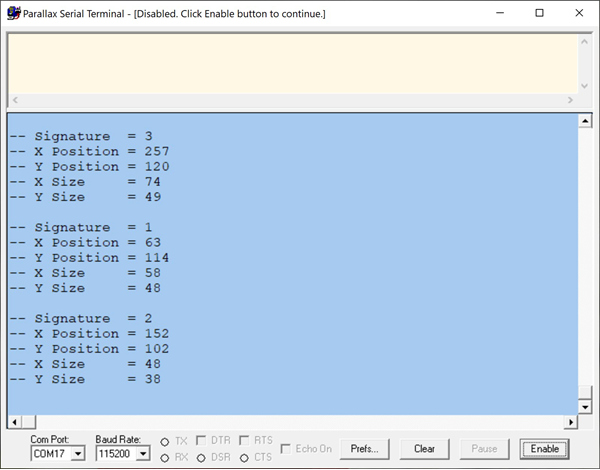
  • Set Baud Rate to 115200. 
  • Click Enable. 
  • Press/release the Propeller Activity Board’s RST button.
  • Click into the light yellow transmit pane, and press any key.

A Tiny Tutorial video on using PST instead of BlocklyProp Terminal is also available.


Printer-friendly version
Configure Pixy2 with PixyMon Software
Prev
What the Numbers Mean
Next

DISCUSSION FORUMS | PARALLAX INC. STORE

About | Terms of Use | Feedback: learn@parallax.com | Copyright©Parallax Inc. 2024

© 2026 Parallax Learn • Built with GeneratePress