
Blink a Light
The cyber:bot board has a built-in Propeller microcontroller on its underside. The Propeller has 32 digital input/output pins, called I/O pins for short, that are designed to interact with circuits. These are referred to by number, P0 through P31.
Some of the I/O pins are connected to circuits built into the cyber:bot board, that your robot is already using. For example, P16 through P19 are connected to 3-pin headers, where the servo motors are plugged into P18 and P19. In this activity, we will use P20 and P21, which are connected to tiny built-in LED lights. Later on, we will build circuits on the breadboard, and connect them to the sockets alongside labeled P0–P15. Scripts sent to the micro:bit module can instruct the Propeller to interact with these built-in circuits.
Hardware Setup
- Set the cyber:bot board’s power (PWR) switch to Position 0.
- Make sure the battery holder is loaded with 5 AA batteries.
- Make sure the battery holder’s barrel plug is firmly plugged into the cyber:bot board’s barrel jack.
- Connect your micro:bit module to your computer with a USB cable.
Software Setup
- In a Google Chrome or Microsoft Edge browser, go to python.microbit.org to open the micro:bit Python Editor.
- Make sure the cyberbot.py module is added to the Project Files.
(See Add modules to your micro:bit).
Blinking Lights
We’ll experiment with the “O” (output) feature of an I/O pin with a program to turn the built-in LED circuit on and off.
- Locate the small LED light.
On the cyber:bot, it’s a small part just above the P20 label in the lower-right corner of your board.
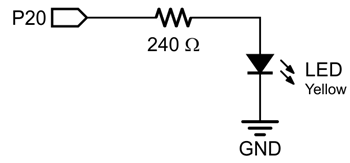
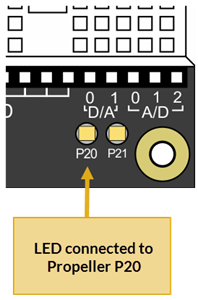
Example script: pin_20_blink
- Set the project’s name to pin_20_blink, enter the script below, and then click Save.
(See Save & Edit Scripts and Flash Scripts with Python Editor.) - Click Send to micro:bit.
(See Flash Scripts with Python Editor.) - Set the cyber:bot board’s PWR switch to 1.
- Watch the LED above the P20 label. It should blink slowly, once every 3 seconds.
# pin_20_blink

from cyberbot import *

while True:
    bot(20).write_digital(1)
    sleep(2000)
    bot(20).write_digital(0)
    sleep(1000)
How it works
The program begins with from cyberbot import *. This lets your script use bot(pin) functions from the cyberbot module, which send command codes to the Propeller microcontroller. From there, the Propeller uses its pre-programmed firmware to interact with circuits connected to its I/O pins.
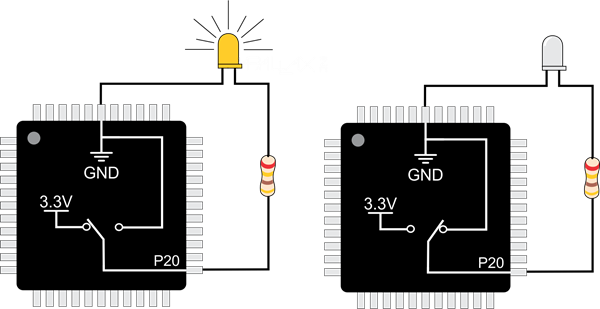
The function call bot(20).write_digital(1) sets Propeller I/O pin P20 to “output high” which means it connects to its 3.3 V supply, as shown on the left side of the image below. The pin applies 3.3 V of electrical pressure to the LED circuit, causing electric current to pass through it and the light to turn on. After that, sleep(2000) makes the program do nothing for 2000 ms, which keeps the light on for 2 seconds.
Next, bot(20).write_digital(0). This sets P20 to output-low, which connects the pin to its 0 V ground supply voltage instead, as shown on the right side of the figure below. This takes away the electrical pressure, so the current stops flowing through the circuit and the light turns off. Another sleep(1000) makes the light stay off for one second.
Those four commands are in a code block in a while True: loop, which repeats endlessly, so the light keeps blinking.
Try this: pin_20_blink_fast
You can change the light’s blink rate by changing the sleep function’s us argument. For example, to make the light blink a lot faster, significantly reduce the sleep time.
- Set the project’s name to pin_20_blink_fast, change the script so that it matches the one below, and then click Save.
- Click Send to micro:bit to flash the script into it.
- Verify that the P20 LED blinks on/off rapidly.
# pin_20_blink_fast

from cyberbot import *

while True:
    bot(20).write_digital(1)
    sleep(50)
    bot(20).write_digital(0)
    sleep(50)
Your turn
Expand your script to control the P21 light along with the P20 light.
- Modify your program so that it turns both lights on and off at about the same time.
- Modify your program so that whenever one light is on, the other is off.
If You Are Done
If you are done for the day, always follow these steps.
- Set PWR to 0.
- Unplug the battery holder’s barrel plug from the cyber:bot board’s barrel jack.
Just taking a break, but will do more today? Then follow these steps.
- Just set the cyber:bot board’s PWR switch to 0 until it’s time to test the next script.