
Create a Dictionary
Let’s make a simple interactive dictionary with two key-value pairs.
Example project: interactive_dictionary
- Enter and name the project interactive_dictionary.
- Click the Download button.
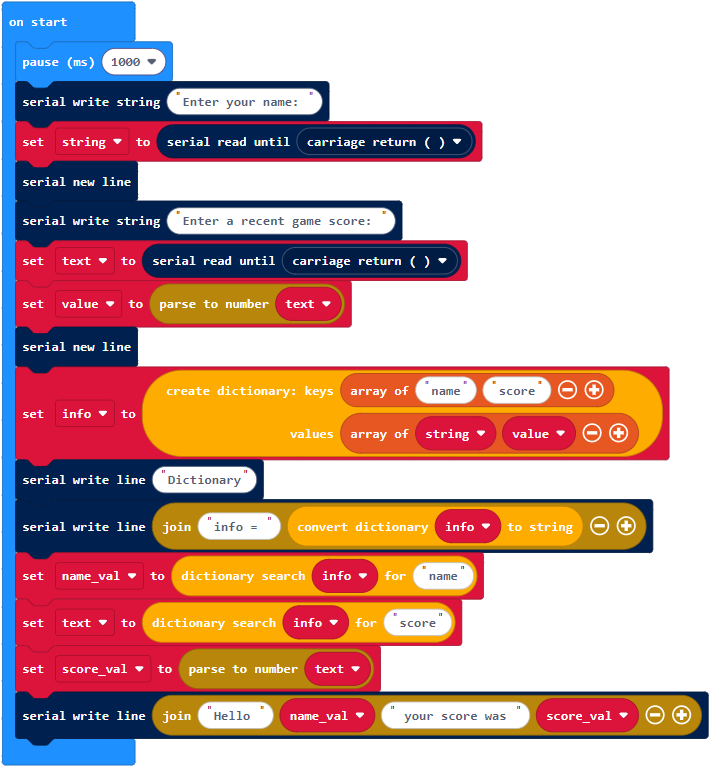
- If the serial monitor is not already open, go to Google Chromelabs Serial Terminal.
- Make sure that the Local echo box is checked.
- Click to the right of the Enter your name: prompt.
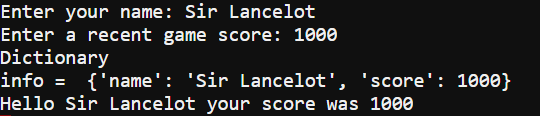
- Follow the prompts to enter a name and a score.
Assuming you entered Sir Lancelot for the name and 1000 for the score, the terminal should respond with info = {‘name’: ‘Sir Lancelot’, ‘score’ : 1000} on one line and Hello Sir Lancelot your score was 1000 on the next.
- Verify that the response in the serial monitor is consistent with your input.
How interactive_dictionary Works
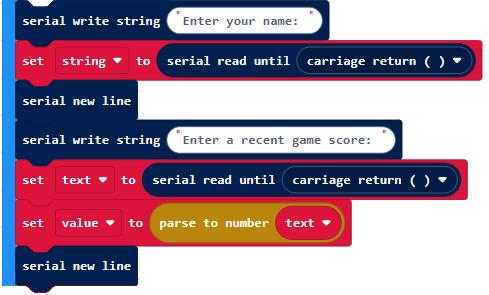
The project starts by storing your keyboard input into the string and value variables. Let’s assume you typed Sir Lancelot and 1000 in response to the prompts. The string variable will store ‘Sir Lancelot’, and the value variable will store 1000.
Since the dictionary does not already have ‘name’ or ‘score’ keys, this block adds two key-value pairs to the dictionary. Assuming the string variable stores ‘Sir Lancelot’ and the value variable stores 1000, one key-value pair would be ‘name’: ‘Sir Lancelot’, and the second would be ‘score’ : 1000.

The first serial write block is just a heading. The second one displays name: and score: then the contents of the dictionary. Continuing the Sir Lancelot example, it would look like this: name: Sir Lancelot score: 1000

The first two blocks here “look up” values in the dictionary by using their keys. The name_val variable stores the value that’s paired with ‘name’ in the dictionary. Continuing the earlier example, name_val would store the string value ‘Sir Lancelot’ and score_val would store the int value 1000.
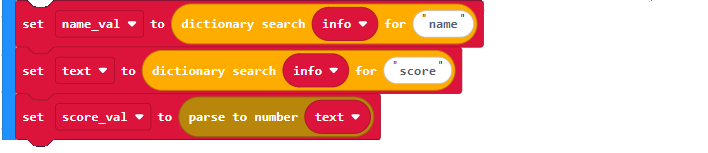
After looking up the values and storing them in variables, the project uses a serial write block to display “Hello Sir Lancelot your score was 1000”.
