Skip to content
Parallax Learn

Parallax Learn

  • Welcome
  • Tutorials
        • Tutorial Series head tag

          Tutorial Series
        • Tutorial Series

          The special, classroom-ready series pages are organized collections of tutorials for our most popular hardware and/or languages. The tutorials for each topic are conveniently accessible from a single page, shown in the order it is recommended that they be completed.
        • Robotics Series Head tag

          Robotics Series
        • Robotics Series

          • Artificial Intelligence
          • Cybersecurity: Radio Data tutorialCybersecurity
          • cyber:bot + Python
          • cyber:bot + MakeCode
          • Boe-Bot Tutorial SeriesBoe-Bot
          • Arduino Shield-Bot
          • ActivityBot with C TutorialsActivityBot + C
          • ActivityBot with BlocklyProp Tutorial SeriesActivityBot + BlocklyProp
          • Scribbler 3 Tutorial SeriesScribbler 3
        • Electronics & Programming Series Head tag

          Electronics & Programming Series
          • BS2 Board of Education Tutorial SeriesBS2 Board of Education
          • Propeller C-Language BasicsPropeller C Basics
          • FLiP Try-It Kit C Tutorial SeriesFLiP Try-It Kit + C
          • FLiP Try-It Kit BlocklyProp TutorialsFLiP Try-It Kit + BlocklyProp
          • Badge WX Tutorial SeriesBadge WX
          • Propeller BlocklyProp Basics and ProjectsPropeller BlocklyProp Basics
          • View All Tutorial Series »
        • Browse Tutorials
        • Browse Tutorials

          Individual tutorials sorted by robot or kit, and language.
        • By Robot or Kit
          • ActivityBot
          • SumoBot WX
          • Boe-Bot
          • Shield-Bot
          • cyber:bot
          • Badge WX
          • ELEV-8
          • ARLO
        • By Language
        • By Language

          • Propeller C
          • Arduino
          • BlocklyProp
          • PBASIC
          • Python
          • MakeCode
          • View All Tutorials »
  • Educators
  • Reference
  • Downloads
  • Home
  • All Courses

Door Control Project

Curriculum

  • 1 Section
  • 3 Lessons
  • Lifetime
Expand all sectionsCollapse all sections
  • Door Control Project
    3
    • 1.1
      Setting Up the Demo Unit
    • 1.2
      Test and Run the Demo Unit
    • 1.3
      How the Demo Works

How the Demo Works

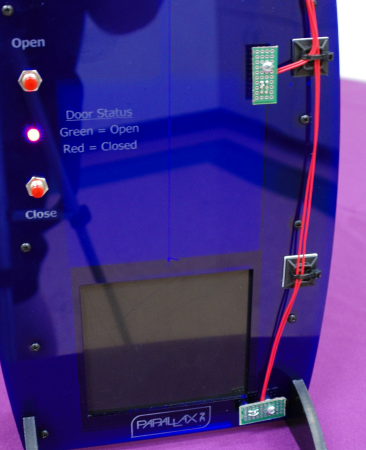
On power-up the code initializes the servo I/O pin, then checks to see if the door is only partially opened or closed by observing that both limit switches are low (0). If this is the case, the Door_Close subroutine is called. Typically the code runs in a loop where you can be doing other things until either the Open or Close button is pressed.

Once a button is pressed the code jumps to that subroutine where it sits in a loop checking to see if the door is in the destination position. If it is, the loop exits, the LED is set to the correct color and the subroutine returns to the main loop. Within the loop the limit switch is checked and then the servo is refreshed, followed by the 20 ms delay required by the servo. This continues until the limit switch goes high (1) causing the code to exit the loop.

The code for this demo was intentionally kept as simple as possible for easy integration into an existing application or to be used as part of a more complex program.

The limit switches work as an IR beam-break system with the IR LED always powered and shining onto the phototransistor. When the door reaches either end position it interrupts the beam causing the phototransistor to no longer be biased. When this happens the 10K pull-up resistor causes the line to go high. When the IR light is shining on the phototransistor it causes the line to be pulled low. The push buttons are also active low in that pressing them causes the I/O pin to be shorted to ground. When the switch is open the I/O line is pulled to 5V via a 10K pull-up resistor.

While the IR LEDs are always on (typical of a beam-break system) you could save a little power by having the IR LEDs only power on during door motion. This would require the use of two additional I/O pins, however.

Stay tuned for Part 2!


Try This

  • Make the door toggle open/closed with a single push button.
  • Make the LED flash during open/close cycles.

Printer-friendly version
Test and Run the Demo Unit
Prev

DISCUSSION FORUMS | PARALLAX INC. STORE

About | Terms of Use | Feedback: learn@parallax.com | Copyright©Parallax Inc. 2024

© 2026 Parallax Learn • Built with GeneratePress