Skip to content
Parallax Learn

Parallax Learn

  • Welcome
  • Tutorials
        • Tutorial Series head tag

          Tutorial Series
        • Tutorial Series

          The special, classroom-ready series pages are organized collections of tutorials for our most popular hardware and/or languages. The tutorials for each topic are conveniently accessible from a single page, shown in the order it is recommended that they be completed.
        • Robotics Series Head tag

          Robotics Series
        • Robotics Series

          • Artificial Intelligence
          • Cybersecurity: Radio Data tutorialCybersecurity
          • cyber:bot + Python
          • cyber:bot + MakeCode
          • Boe-Bot Tutorial SeriesBoe-Bot
          • Arduino Shield-Bot
          • ActivityBot with C TutorialsActivityBot + C
          • ActivityBot with BlocklyProp Tutorial SeriesActivityBot + BlocklyProp
          • Scribbler 3 Tutorial SeriesScribbler 3
        • Electronics & Programming Series Head tag

          Electronics & Programming Series
          • BS2 Board of Education Tutorial SeriesBS2 Board of Education
          • Propeller C-Language BasicsPropeller C Basics
          • FLiP Try-It Kit C Tutorial SeriesFLiP Try-It Kit + C
          • FLiP Try-It Kit BlocklyProp TutorialsFLiP Try-It Kit + BlocklyProp
          • Badge WX Tutorial SeriesBadge WX
          • Propeller BlocklyProp Basics and ProjectsPropeller BlocklyProp Basics
          • View All Tutorial Series »
        • Browse Tutorials
        • Browse Tutorials

          Individual tutorials sorted by robot or kit, and language.
        • By Robot or Kit
          • ActivityBot
          • SumoBot WX
          • Boe-Bot
          • Shield-Bot
          • cyber:bot
          • Badge WX
          • ELEV-8
          • ARLO
        • By Language
        • By Language

          • Propeller C
          • Arduino
          • BlocklyProp
          • PBASIC
          • Python
          • MakeCode
          • View All Tutorials »
  • Educators
  • Reference
  • Downloads
  • Home
  • All Courses

Remember Training Data with a microSD Card

Curriculum

  • 1 Section
  • 3 Lessons
  • Lifetime
Expand all sectionsCollapse all sections
  • MicroSD Setup and Testing
    3
    • 1.0
      Plug in the microSD Card
    • 1.1
      Update the Training Programs
    • 1.2
      Test the Training Program

Update the Training Programs

You may have noticed that turning off your robot erased all the HUSKYLENS training data. That can be frustrating! This time, we’ll use the MicroSD card slot on the HUSKYLENS so your training data can be saved and loaded whenever you need it. With this program, you’ll be able to change IDs with the micro:bit buttons, train the camera on colors, save that training to the MicroSD card, and reload it later. You’ll also be able to erase everything when you’re ready for a fresh start.

The Program

  • Start with the Learn Colors script you saved in the Create the Color Training Script lesson.  If you need to reopen it, simply click the Import button on the makecode.microbit.org homepage.
  • Use the Name field next to the Download button to name the project: Learn Colors and Remember with microSD.
  • Update your program so that it matches the one below.
  • Click the Save icon (floppy disk) to keep a copy in your editor.
  • Press Download to load the program onto your micro:bit.
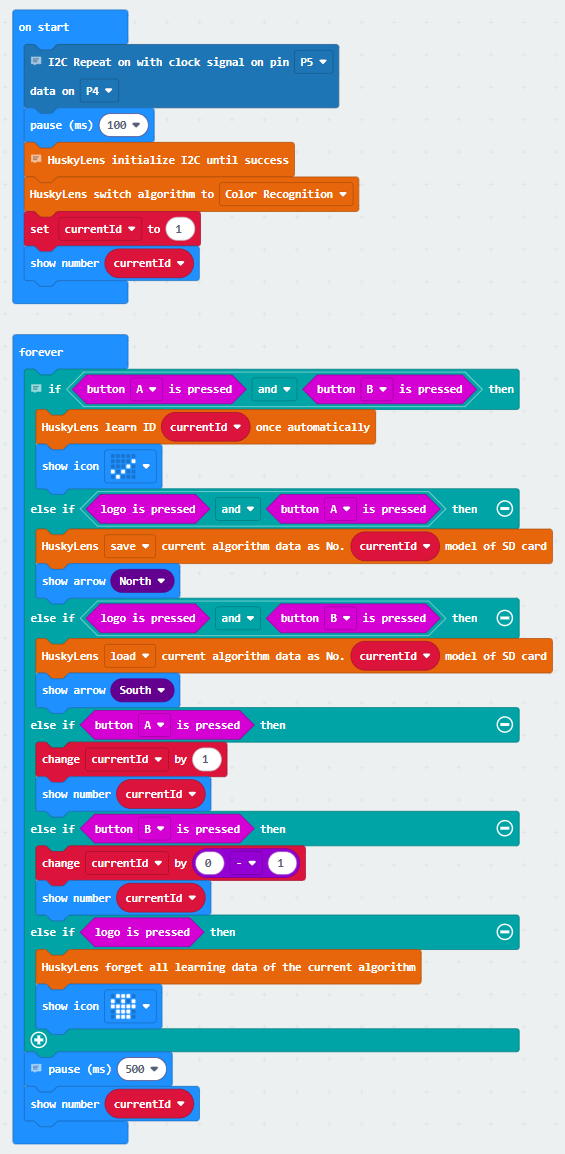
How It Works

On start setup

I2C Repeat on with clock signal on pin P5 data on P4 → shares the I²C bus with the cyber:bot board.

pause (ms) (100) → gives the system time to get ready.

HuskyLens initialize I2C until success → starts communication with the HUSKYLENS.

HuskyLens switch algorithm to (color recognition) → sets it to look for colors.

set (currentId) to (1) → starts the ID counter at 1.

show number (currentId) → displays “1” on the LED matrix.

Inside the forever loop
Each time through the loop, the script checks conditions in order. Only the first true condition runs:

if <button A pressed> and <button B pressed>
→ HuskyLens learn ID (currentId) once automatically trains on the current ID.
→ show icon (Yes) confirms success.

else if <logo pressed> and <button A pressed>
→ HuskyLens save model to TF card (Save, currentId) saves this ID’s training data.
→ show arrow (North) shows the save action.

else if <logo pressed> and <button B pressed>
→ HuskyLens save model to TF card (Load, currentId) loads training data from the card.
→ show arrow (South) shows the load action.

else if <button A pressed>
→ change (currentId) by (1) increases the ID.
→ show number (currentId) updates the display.

else if <button B pressed>
→ change (currentId) by (–1) decreases the ID.
→ show number (currentId) updates the display.

else if <logo pressed>
→ HuskyLens forget all learning data of the current algorithm erases training data.
→ show icon (Skull) confirms deletion.

Before the loop repeats:

pause (ms) (500) → debounces button presses.

show number (currentId) → keeps the current ID visible.


Printer-friendly version
Plug in the microSD Card
Prev
Test the Training Program
Next

DISCUSSION FORUMS | PARALLAX INC. STORE

About | Terms of Use | Feedback: learn@parallax.com | Copyright©Parallax Inc. 2024

© 2026 Parallax Learn • Built with GeneratePress