
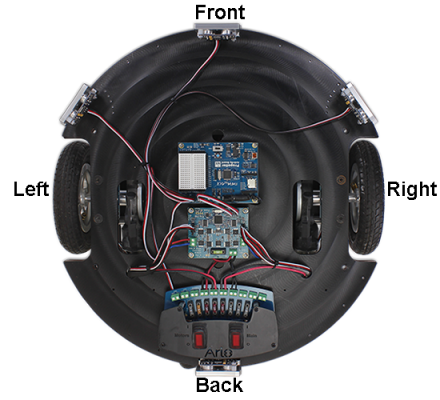
Ready for a bigger ActivityBot? Try mounting your Propeller Activity Board (WX, or original) on the Arlo! After a couple connections, a few simple tests, and a change to one line of code, any ActivityBot example will run. The number of encoder ticks it takes for the Arlo to go distances and execute turns is different from your ActivityBot, so you will probably also want to adjust a few numbers in your programs. After that the Arlo will run ActivityBot code like a champ.
Prep
- If you have not done so yet, complete the Arlo Robot Assembly Guide tutorial first, up to but not inlcuding the optional Top Deck Assembly.
- Grab your Propeller Activity Board WX (#32912, included with the Arlo Complete) or Activity Board (#32910).
- Install and test the SimpleIDE Programming Software. If you already have it installed, make sure you have the most current version available.
- Download the Propeller C arlodrive Library and Code from the download page.
- Unzip, and then copy the libarlodrive folder into …Documents/SimpleIDE/Learn/Simple Libraries/Robotics/
Curriculum
- 1 Section
- 12 Lessons
- Lifetime
Expand all sectionsCollapse all sections
- Arlo with an Activity Board Brain12
- 1.0Connect Activity Board to DHB-10
- 1.1Test & Correct Activity Board Electical Connections
- 1.2Clear the Propeller Program
- 1.3Test Propeller to DHB-10 Communication
- 1.4Test Activity Board Arlo’s Motor Connections
- 1.5Test Activity Board Arlo’s Encoder Connections
- 1.6Try & Tune Some ActivityBot Code
- 1.7Control Arlo with the SimpleIDE Terminal
- 1.8Connect & Test Activity Board Arlo Ping))) Sensors
- 1.9Control the Activity Board Arlo with Serial Messages
- 1.10Activity Board Arlo Control System Adjustments
- 1.11Troubleshooting Your Arlo + Activity Board
