Skip to content
Parallax Learn

Parallax Learn

  • Welcome
  • Tutorials
        • Tutorial Series head tag

          Tutorial Series
        • Tutorial Series

          The special, classroom-ready series pages are organized collections of tutorials for our most popular hardware and/or languages. The tutorials for each topic are conveniently accessible from a single page, shown in the order it is recommended that they be completed.
        • Robotics Series Head tag

          Robotics Series
        • Robotics Series

          • Artificial Intelligence
          • Cybersecurity: Radio Data tutorialCybersecurity
          • cyber:bot + Python
          • cyber:bot + MakeCode
          • Boe-Bot Tutorial SeriesBoe-Bot
          • Arduino Shield-Bot
          • ActivityBot with C TutorialsActivityBot + C
          • ActivityBot with BlocklyProp Tutorial SeriesActivityBot + BlocklyProp
          • Scribbler 3 Tutorial SeriesScribbler 3
        • Electronics & Programming Series Head tag

          Electronics & Programming Series
          • BS2 Board of Education Tutorial SeriesBS2 Board of Education
          • Propeller C-Language BasicsPropeller C Basics
          • FLiP Try-It Kit C Tutorial SeriesFLiP Try-It Kit + C
          • FLiP Try-It Kit BlocklyProp TutorialsFLiP Try-It Kit + BlocklyProp
          • Badge WX Tutorial SeriesBadge WX
          • Propeller BlocklyProp Basics and ProjectsPropeller BlocklyProp Basics
          • View All Tutorial Series »
        • Browse Tutorials
        • Browse Tutorials

          Individual tutorials sorted by robot or kit, and language.
        • By Robot or Kit
          • ActivityBot
          • SumoBot WX
          • Boe-Bot
          • Shield-Bot
          • cyber:bot
          • Badge WX
          • ELEV-8
          • ARLO
        • By Language
        • By Language

          • Propeller C
          • Arduino
          • BlocklyProp
          • PBASIC
          • Python
          • MakeCode
          • View All Tutorials »
  • Educators
  • Reference
  • Downloads
  • Home
  • All Courses

Breadboard Setup and Testing for micro:bit

Curriculum

  • 1 Section
  • 27 Lessons
  • Lifetime
Expand all sectionsCollapse all sections
  • Breadboard Setup and Testing for micro:bit
    27
    • 1.1
      Connect the micro:bit to a Breadboard
    • 1.2
      What is a Breadboard?
    • 1.3
      Parts & Circuit
    • 1.4
      First Electrical Connections with a Breadboard
    • 1.5
      How To Connect Two Wires
    • 1.6
      Parts & Circuit
    • 1.7
      Script
    • 1.8
      Node Tests
    • 1.9
      Try This – Probing the Board
    • 1.10
      How it Works
    • 1.11
      Set Power for Circuits
    • 1.12
      Parts & Circuit
    • 1.13
      Script
    • 1.14
      Test the Supply Rails
    • 1.15
      How the Supply Rail Tests Work
    • 1.16
      Try This – Electrical Potential
    • 1.17
      CYBERscope Setup
    • 1.18
      CYBERscope Voltmeter
    • 1.19
      First Breadboard Circuit
    • 1.20
      Parts: LED and Resistors
    • 1.21
      Build the LED Circuit
    • 1.22
      Check & Test the LED Circuit
    • 1.23
      How the LED Circuit Works
    • 1.24
      Resistor Codes & Electron Flow
    • 1.25
      Try This – Change the Resistor
    • 1.26
      Review and Practice
    • 1.27
      Solutions

Parts & Circuit

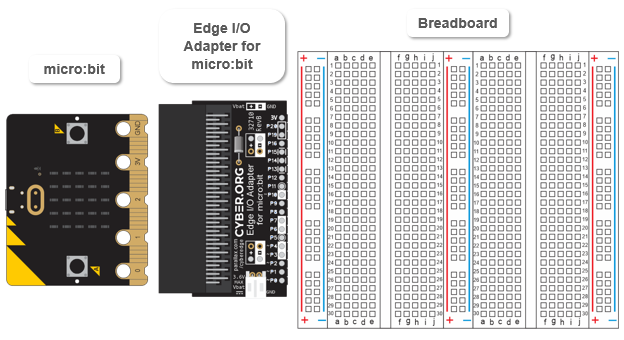
Parts

  • micro:bit module
  • Edge I/O Adapter for micro:bit (Rev B or higher)
  • Breadboard

Gather the parts and place them in a row as shown in the picture.  
Circuit

  • Connect your micro:bit to the breadboard with the Edge I/O Adapter, following the animation and the checkmark instructions below it.
  • Optionally, view the full-size clip microbit-edge-breadboard-setup.mp4 to play and pause between steps.

.
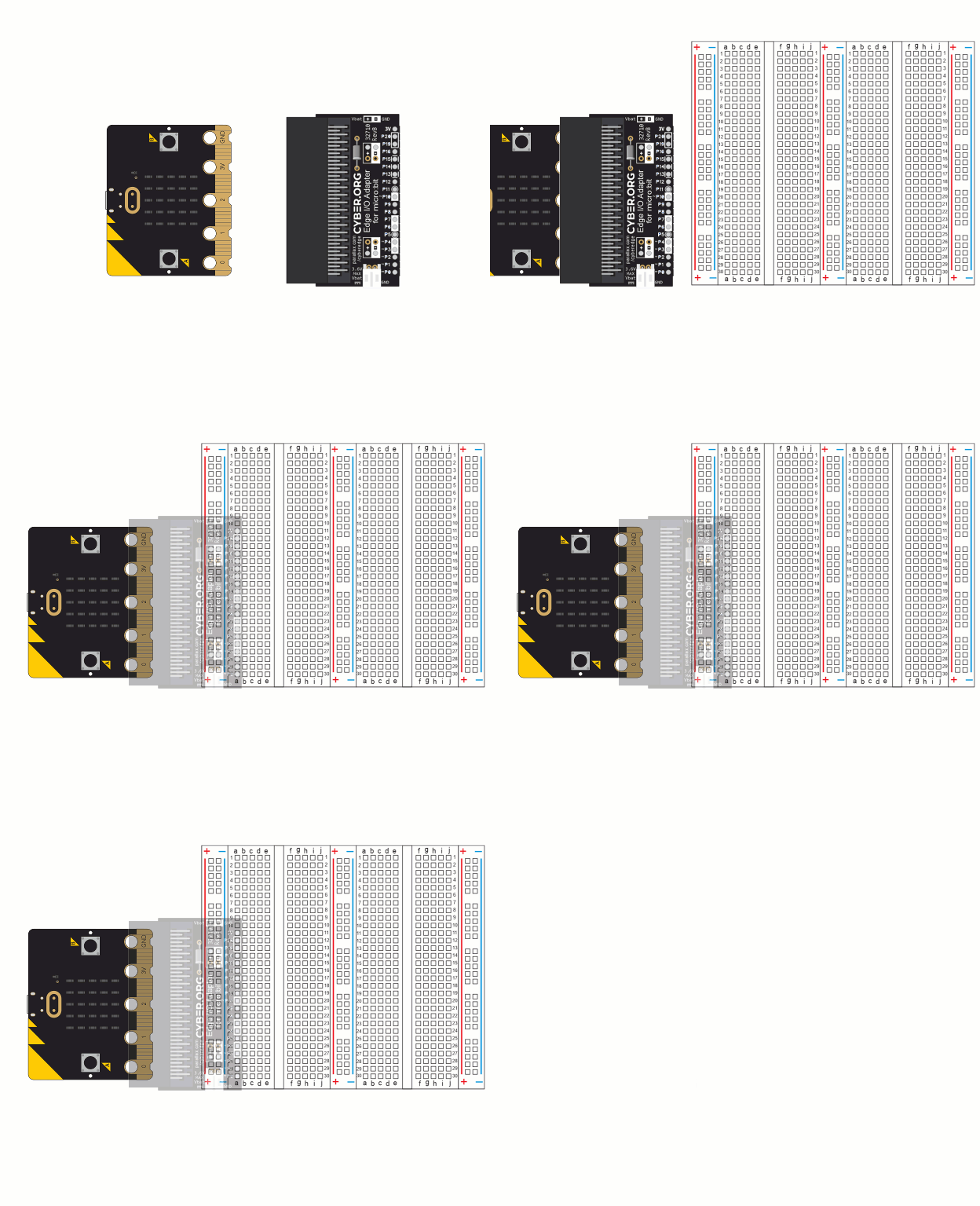
  • Make sure the breadboard is right-side-up so that its 1, 2, 3 row labels are at the top.  The 28, 29, and 30 row labels should also be at the bottom.
  • Set the Edge I/O Adapter on the left side of the breadboard so that:
    • the adapter pin labeled P0 goes in the (a, 30) breadboard socket
    • the adapter pin labeled 3V pin goes in the (a, 11) socket
    • the two adapter pins labeled (+) go in the bus strip (+) column sockets next to the red line
    • The two adapter pins labeled (-) go in the bus strip (-) sockets next blue line
  • When you are sure the pins are started in the correct sockets, press down firmly on the edge adapter.  The pins should sink all the way into the breadboard -by about ¼ inch.

Printer-friendly version
What is a Breadboard?
Prev
First Electrical Connections with a Breadboard
Next

DISCUSSION FORUMS | PARALLAX INC. STORE

About | Terms of Use | Feedback: learn@parallax.com | Copyright©Parallax Inc. 2024

© 2026 Parallax Learn • Built with GeneratePress