
Bitmap ePaper Image from SD Card
The ePaper module is able to display bitmap images as well as text that’s formatted to a .bmp file. The first thing you want to have is a BMP file ready to load onto a micro SD card.
If you don’t have one you can convert a file to BMP format using MSPaint, or any online file converter (such as this one). Be sure to select the monochrome setting within the file converter and size your bitmap image dimensions a bit smaller than the display dimensions in units of pixels.
If you want to include text in you bitmap image try using something with the word “console” in the font title, as they were designed for displays. For example, Lucida Console was used for the hashtag below the logo, overlaid on a screencapture using the Snagit editor:
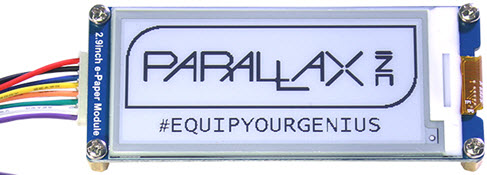
Displaying a BMP Image
- Make sure you rename your file to 8 characters or fewer if it’s not already.
- Load the BMP file onto a micro sd card.
- Once the BMP file is loaded onto the card insert it into your Activity Board’s micro sd card slot and place the power switch to position 1.
- Build the block program below. Notice that the ePaper draw BMP image block does not require the .bmp extension, only the name of the file.
- Save and download the block program onto your board by clicking the Run once button.
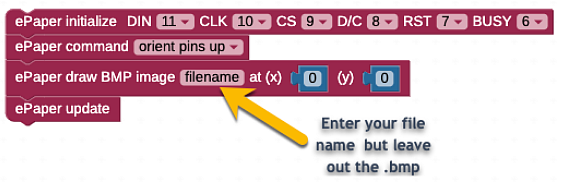
Keep in mind that the ePaper is slow to update and will take approximately 45 seconds to display an image.
Try This
- Try changing the coordinate values (x) and (y) in the ePaper draw BMP image block.

What is the outcome on the screen?
- Try changing the pin orientation to any of the orient pins left, orient pins right or orient pins down settings.

What is the outcome on the screen?
Displaying BMP Image and Playing a WAV file
If you want to enhance your ePaper projects with audio, there are a few things to take into account.
Both the ePaper draw image block and the WAV play block both access files stored on your Activity Board’s SD card. However, the ePaper draw image block lets go of the SD card after fetching the .bmp file, while the WAV play block keeps ahold of the SD card for itself until you release it with a WAV stop block.
So, it is recommended that you draw your bitmap image onto the ePaper first before playing your WAV file. By arranging your blocks to draw the image first, the ePaper will begin the process of drawing your image while the Wave file block plays sound right after.
To hear the sound coming from your board when it plays the WAV file we recommend you use this “Hamburger Style” speaker (#900-00018) that easily connects to the Activity Board’s audio jack.
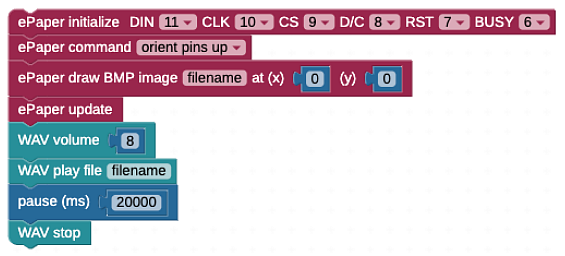
- Build the block program below.
- Enter your file name into the ePaper draw BMP image block, do the same for the WAV play file block.
- Adjust the milliseconds Pause block to match the length of time you expect your WAV to play.
- Save the project then click the Run once button to download it onto your board.
Try This
- Try removing the WAV stop block and load the remaining project onto your board by clicking the Run once button.
What is the result?