Skip to content
Parallax Learn

Parallax Learn

  • Welcome
  • Tutorials
        • Tutorial Series head tag

          Tutorial Series
        • Tutorial Series

          The special, classroom-ready series pages are organized collections of tutorials for our most popular hardware and/or languages. The tutorials for each topic are conveniently accessible from a single page, shown in the order it is recommended that they be completed.
        • Robotics Series Head tag

          Robotics Series
        • Robotics Series

          • Artificial Intelligence
          • Cybersecurity: Radio Data tutorialCybersecurity
          • cyber:bot + Python
          • cyber:bot + MakeCode
          • Boe-Bot Tutorial SeriesBoe-Bot
          • Arduino Shield-Bot
          • ActivityBot with C TutorialsActivityBot + C
          • ActivityBot with BlocklyProp Tutorial SeriesActivityBot + BlocklyProp
          • Scribbler 3 Tutorial SeriesScribbler 3
        • Electronics & Programming Series Head tag

          Electronics & Programming Series
          • BS2 Board of Education Tutorial SeriesBS2 Board of Education
          • Propeller C-Language BasicsPropeller C Basics
          • FLiP Try-It Kit C Tutorial SeriesFLiP Try-It Kit + C
          • FLiP Try-It Kit BlocklyProp TutorialsFLiP Try-It Kit + BlocklyProp
          • Badge WX Tutorial SeriesBadge WX
          • Propeller BlocklyProp Basics and ProjectsPropeller BlocklyProp Basics
          • View All Tutorial Series »
        • Browse Tutorials
        • Browse Tutorials

          Individual tutorials sorted by robot or kit, and language.
        • By Robot or Kit
          • ActivityBot
          • SumoBot WX
          • Boe-Bot
          • Shield-Bot
          • cyber:bot
          • Badge WX
          • ELEV-8
          • ARLO
        • By Language
        • By Language

          • Propeller C
          • Arduino
          • BlocklyProp
          • PBASIC
          • Python
          • MakeCode
          • View All Tutorials »
  • Educators
  • Reference
  • Downloads
  • Home
  • All Courses

Parallax WX Wi-Fi Module for Prop C

Curriculum

  • 1 Section
  • 19 Lessons
  • Lifetime
Expand all sectionsCollapse all sections
  • Parallax WX Wi-Fi Module for Prop C
    19
    • 1.0
      Wi-Fi Module Firmware
    • 1.1
      Connect WX Wi-Fi Module to Your Propeller
    • 1.2
      Join the Module’s Wi-Fi
    • 1.3
      Update the Module Firmware
    • 1.4
      Configure Module Communication
    • 1.5
      Load and View a Test Page
    • 1.6
      Test the Propeller to Webpage Connection
    • 1.7
      Join Another Wi-Fi Network
    • 1.8
      Get Started With HTML
    • 1.9
      Get Started With JavaScript
    • 1.10
      Relay Information with JavaScript
    • 1.11
      Send Web Page Event Info to the Propeller
    • 1.12
      Motor Control with Sliders
    • 1.13
      Page Requests Info from Propeller
    • 1.14
      Display Pushbutton States
    • 1.15
      Program the Propeller over Wi-Fi
    • 1.16
      Print and Scan Function Review
    • 1.17
      Web Page Controlled LED Lights
    • 1.18
      Display Light Levels with Canvas

Test the Propeller to Webpage Connection

First let’s load the test program into your Propeller.

  • Navigate to the Propeller C folder.  
  • Click the Open Project Button, select Val from Micro Host.side, and click Open.
  • Update the wifi_start function call to match the configuration circuit/start function you chose in Connect WX Wi-Fi Module to Your Propeller. 
  • Connect the power/programming cable from your computer to your board.
  • Set the board PWR switch to either 1 or 2.
  • Load the program into the Propeller using the Run with Terminal button.

Now we’ll check the connection between your Propeller and the web page we had you open in the previous page. Make sure you have the page open and visible.

The Propeller program counts upwards at about 4x per second.  Every time you click the web page’s Enter button, the Propeller should send an updated (and higher) value.
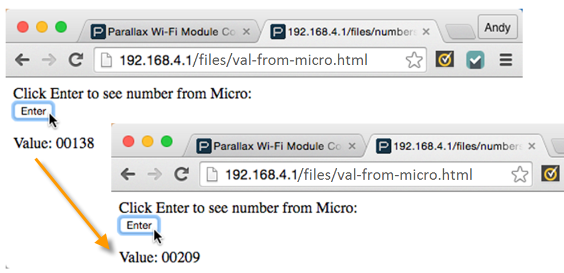
  • Try clicking the web page’s Enter button, wait a few seconds, then click it again.  

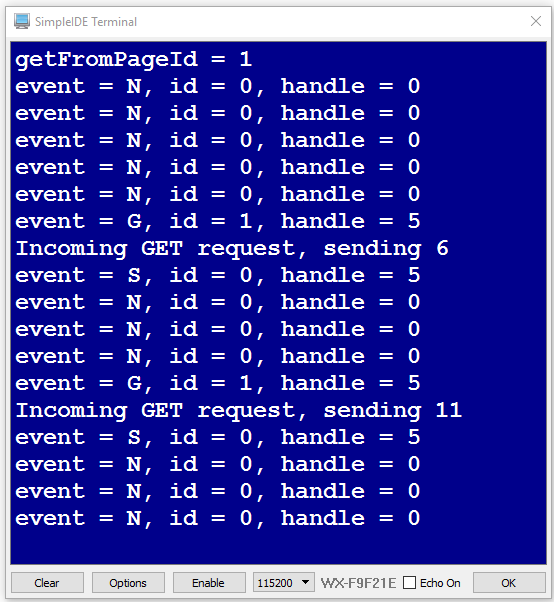
In addition to an updated number in the web page, your SimpleIDE Terminal should display that it sent a number each time you click the button:

Printer-friendly version
Load and View a Test Page
Prev
Join Another Wi-Fi Network
Next

DISCUSSION FORUMS | PARALLAX INC. STORE

About | Terms of Use | Feedback: learn@parallax.com | Copyright©Parallax Inc. 2024

© 2026 Parallax Learn • Built with GeneratePress