Skip to content
Parallax Learn

Parallax Learn

  • Welcome
  • Tutorials
        • Tutorial Series head tag

          Tutorial Series
        • Tutorial Series

          The special, classroom-ready series pages are organized collections of tutorials for our most popular hardware and/or languages. The tutorials for each topic are conveniently accessible from a single page, shown in the order it is recommended that they be completed.
        • Robotics Series Head tag

          Robotics Series
        • Robotics Series

          • Artificial Intelligence
          • Cybersecurity: Radio Data tutorialCybersecurity
          • cyber:bot + Python
          • cyber:bot + MakeCode
          • Boe-Bot Tutorial SeriesBoe-Bot
          • Arduino Shield-Bot
          • ActivityBot with C TutorialsActivityBot + C
          • ActivityBot with BlocklyProp Tutorial SeriesActivityBot + BlocklyProp
          • Scribbler 3 Tutorial SeriesScribbler 3
        • Electronics & Programming Series Head tag

          Electronics & Programming Series
          • BS2 Board of Education Tutorial SeriesBS2 Board of Education
          • Propeller C-Language BasicsPropeller C Basics
          • FLiP Try-It Kit C Tutorial SeriesFLiP Try-It Kit + C
          • FLiP Try-It Kit BlocklyProp TutorialsFLiP Try-It Kit + BlocklyProp
          • Badge WX Tutorial SeriesBadge WX
          • Propeller BlocklyProp Basics and ProjectsPropeller BlocklyProp Basics
          • View All Tutorial Series »
        • Browse Tutorials
        • Browse Tutorials

          Individual tutorials sorted by robot or kit, and language.
        • By Robot or Kit
          • ActivityBot
          • SumoBot WX
          • Boe-Bot
          • Shield-Bot
          • cyber:bot
          • Badge WX
          • ELEV-8
          • ARLO
        • By Language
        • By Language

          • Propeller C
          • Arduino
          • BlocklyProp
          • PBASIC
          • Python
          • MakeCode
          • View All Tutorials »
  • Educators
  • Reference
  • Downloads
  • Home
  • All Courses

(Legacy Version) Propeller C Programming with the ActivityBot

Curriculum

  • 1 Section
  • 48 Lessons
  • Lifetime
Expand all sectionsCollapse all sections
  • (Legacy Version) Propeller C Programming with the ActivityBot
    48
    • 1.1
      Mechanical Assembly
    • 1.2
      Check your Hardware
    • 1.3
      Step 1 – Prepare your Encoders
    • 1.4
      Step 2 – Prepare the Tires
    • 1.5
      Step 3 – Prepare the Chassis
    • 1.6
      Step 4 – Prepare the Servos
    • 1.7
      Step 5 – Mount the Right Servo
    • 1.8
      Step 6 – Mount the Left Servo
    • 1.9
      Step 7 – Mount the Right Encoder
    • 1.10
      Step 8 – Mount the Left Encoder
    • 1.11
      Step 9 – Mount the Battery Pack
    • 1.12
      Step 10 – Mount the Tail Wheel
    • 1.13
      Step 11 – Mount the Drive Wheels
    • 1.14
      Step 12 – Mount the Activity Board
    • 1.15
      Electrical Connections
    • 1.16
      Software and Programming
    • 1.17
      Circuit Practice
    • 1.18
      Powering & Connecting Circuits
    • 1.19
      Blinks
    • 1.20
      Beeps
    • 1.21
      Navigation Basics
    • 1.22
      Test Feedback 360° Servos
    • 1.23
      Calibrate Feedback 360° Encoders
    • 1.24
      Test the External Encoders
    • 1.25
      Calibrate External Encoders
    • 1.26
      Go Certain Distances
    • 1.27
      Set Certain Speeds
    • 1.28
      Navigate by Touch
    • 1.29
      Build the Whiskers
    • 1.30
      Test the Whiskers
    • 1.31
      Inside the Whisker Circuit (Optional)
    • 1.32
      Add Whisker Indicator Lights
    • 1.33
      Whisker-Wheel Response
    • 1.34
      Roaming with Whiskers
    • 1.35
      Navigate by Ultrasound
    • 1.36
      Build and Test the Ping))) Sensor Circuit
    • 1.37
      Roaming with Ultrasound
    • 1.38
      Follow Objects with Ultrasound
    • 1.39
      Navigate by Visible Light
    • 1.40
      Build the Light Sensor Circuits
    • 1.41
      Using the Measurements
    • 1.42
      Roaming with Light Sensors
    • 1.43
      Navigate by Infrared Flashlights
    • 1.44
      Build the IR Sensor Circuits
    • 1.45
      Test the IR Sensor Circuits
    • 1.46
      Roaming with Infrared Flashlights
    • 1.47
      Extras
    • 1.48
      Troubleshooting

Powering & Connecting Circuits

The 3-Position Power Switch
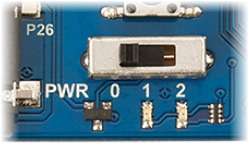
All versions of the Propeller Activity Board have a 3-position power switch:

  1. Position 0  — for building and modifying circuits.  Position 0 turns off power to the circuits on the board.  (If you plug your board into a USB port, you might see little lights near the USB connector, since it is receiving power from your computer).
  2. Position 1  — for programming and breadboard circuits.  Position 1 connects power to most of the circuits on the board, including the black sockets along the three edges of the white breadboard.  It does NOT connect power to the 3-pin servo ports labeled P12-P17 that are above the white breadboard.  Put the switch in Position 1 before loading a navigation program that will make the robot’s wheels turn, and then load the program into EEPROM.  This will keep the robot from driving off the table as soon as the program is loaded.
  3. Position 2 — for making the ActivityBot move.  Position 2 powers all the circuits on the board, including the 3-pin servo ports labeled P12-P17.  After loading a navigation program into EEPROM, you can put the robot on the floor, hold the reset button down, and put the switch in position 2.  When you let go of the reset button, the program will start running and the robot will drive in the (hopefully) safe place you placed it.


The Breadboard

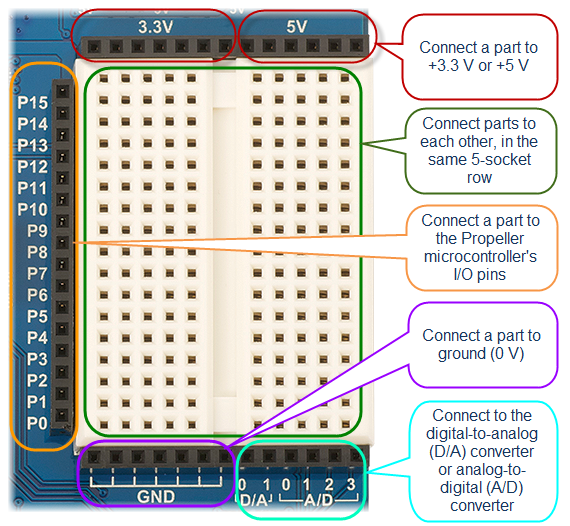
The breadboard lets you build your own circuits with common electronic components. It’s a great way to learn about electricity, and to experiment with making your own inventions.  Building experimental circuits to design your own projects is called prototyping, and it is a real-world engineering skill. 

The Activity Board’s breadboard (original or WX version) is surrounded on three sides by black sockets. These make it convenient to connect circuits on the breadboard to power, ground, and the Propeller I/O pins.  There are also sockets to connect to a digital-to-analog converter and an analog-to-digital converter.
  • If you have never built circuits on a breadboard before, go to the Breadboard Basics page, then return here.

Welcome back! Did you watch the video? If you did, you now know why it’s called a “breadboard.” History can be pretty interesting!

  • Follow the links below to continue with the ActivityBot tutorial.


Printer-friendly version
Circuit Practice
Prev
Blinks
Next

DISCUSSION FORUMS | PARALLAX INC. STORE

About | Terms of Use | Feedback: learn@parallax.com | Copyright©Parallax Inc. 2024

© 2026 Parallax Learn • Built with GeneratePress