Skip to content
Parallax Learn

Parallax Learn

  • Welcome
  • Tutorials
        • Tutorial Series head tag

          Tutorial Series
        • Tutorial Series

          The special, classroom-ready series pages are organized collections of tutorials for our most popular hardware and/or languages. The tutorials for each topic are conveniently accessible from a single page, shown in the order it is recommended that they be completed.
        • Robotics Series Head tag

          Robotics Series
        • Robotics Series

          • Artificial Intelligence
          • Cybersecurity: Radio Data tutorialCybersecurity
          • cyber:bot + Python
          • cyber:bot + MakeCode
          • Boe-Bot Tutorial SeriesBoe-Bot
          • Arduino Shield-Bot
          • ActivityBot with C TutorialsActivityBot + C
          • ActivityBot with BlocklyProp Tutorial SeriesActivityBot + BlocklyProp
          • Scribbler 3 Tutorial SeriesScribbler 3
        • Electronics & Programming Series Head tag

          Electronics & Programming Series
          • BS2 Board of Education Tutorial SeriesBS2 Board of Education
          • Propeller C-Language BasicsPropeller C Basics
          • FLiP Try-It Kit C Tutorial SeriesFLiP Try-It Kit + C
          • FLiP Try-It Kit BlocklyProp TutorialsFLiP Try-It Kit + BlocklyProp
          • Badge WX Tutorial SeriesBadge WX
          • Propeller BlocklyProp Basics and ProjectsPropeller BlocklyProp Basics
          • View All Tutorial Series »
        • Browse Tutorials
        • Browse Tutorials

          Individual tutorials sorted by robot or kit, and language.
        • By Robot or Kit
          • ActivityBot
          • SumoBot WX
          • Boe-Bot
          • Shield-Bot
          • cyber:bot
          • Badge WX
          • ELEV-8
          • ARLO
        • By Language
        • By Language

          • Propeller C
          • Arduino
          • BlocklyProp
          • PBASIC
          • Python
          • MakeCode
          • View All Tutorials »
  • Educators
  • Reference
  • Downloads
  • Home
  • All Courses

Exception Handling Primer

Curriculum

  • 1 Section
  • 9 Lessons
  • Lifetime
Expand all sectionsCollapse all sections
  • Exception Handling Primer
    9
    • 1.0
      Exceptions and Exception Handling
    • 1.1
      Make a Script Handle Exceptions
    • 1.2
      How it Works, and Breaks
    • 1.3
      Try This: Add Exception Handler
    • 1.4
      Your Turn: Coder-Friendly Hints
    • 1.5
      Make an App that Won’t Freeze
    • 1.6
      How it Works: ValueError
    • 1.7
      Try This: Add Exception Handler for User Errors
    • 1.8
      Your Turn: User-Friendly Hints

Make an App that Won’t Freeze

In our last example, the programmer (you) introduced the exception right in the script.  But in real life applications, the exception may be caused by a user entering incorrect or unexpected data during run time.  And, the user can’t necessarily see the code, or understand Python’s error types.

The next example program works much like the previous ones, but it lets the user change the value of d — the denominator— by entering data in the terminal instead of modifying the script. 

Example script: exceptions_user_division_calc

  • Enter, name, and save exceptions_user_division_calc.  
  • Click the Send to micro:bit button.
# exceptions_user_division_calc

from microbit import *

sleep(1000)

print("Division Calculations")

while True:
    text = input("Enter numerator n: ")
    n = float(text)

    text = input("Enter denominator d: ")
    d = float(text)

    q = n / d

    print("Quotient q: ")
    print("q = n / d")
    print("  = ", n, " / ", d)
    print("  = ", q)

    print("Try again!")
    print()
  • In the serial monitor, click to the right of the Enter numerator n: prompt.
  • The first time through the loop, try entering values like 20 for the numerator and 5 for the denominator.
  • Verify that the correct answer is displayed.
  • The second time through, try entering zero for the denominator.
  • Verify that the application halts and then displays the ZeroDivisionError exception.
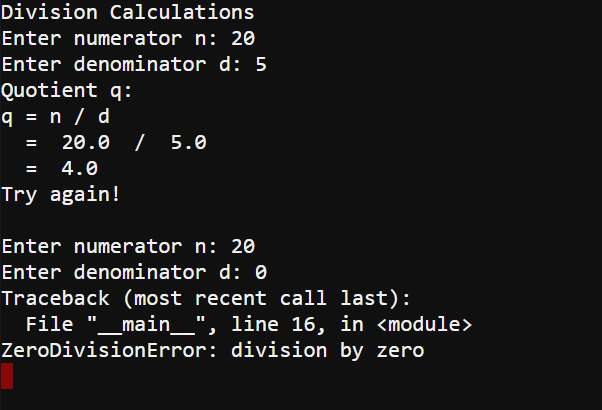
  • The application has halted, so you will have to restart it by pressing and releasing the micro:bit module’s reset button (next to its USB port) or re-flashing the script.
  • Try typing some text like “Hello” in either the numerator or denominator prompts.
  • Make a note of the error. It is no longer a TypeError; it’s a ValueError.


Printer-friendly version
Your Turn: Coder-Friendly Hints
Prev
How it Works: ValueError
Next

DISCUSSION FORUMS | PARALLAX INC. STORE

About | Terms of Use | Feedback: learn@parallax.com | Copyright©Parallax Inc. 2024

© 2026 Parallax Learn • Built with GeneratePress