
Curriculum
- 9 Sections
- 148 Lessons
- Lifetime
Expand all sectionsCollapse all sections
- About This Tutorial3
- Chapter 1. Your Shield-Bot's Brain25
- 2.1Chapter 1. Your Shield-Bot’s Brain
- 2.2Hardware and Software Options
- 2.3Shield-Bot Chassis Parts
- 2.4Shield-Bot Hardware
- 2.5Shield-Bot Electronics Parts
- 2.6Activity 1: Download and Install the Software
- 2.7Activity 2: Write a Simple “Hello!” Sketch
- 2.8Codebender Hello Sketch
- 2.9How the Hello Sketch Code Works
- 2.10Modify the Sketch to Repeat
- 2.11Hello Messages on New Lines
- 2.12Open the Arduino Reference
- 2.13Activity 3: Store and Retrieve Values
- 2.14Global vs. Local Variables
- 2.15Activity 4: Solve Math Problems
- 2.16Try Floating Point Math
- 2.17Activity 5: Make Decisions
- 2.18More Decisions with if… else if
- 2.19Activity 6: Count and Control Repetitions
- 2.20How the for Loop Works
- 2.21Adjust Initialization, Condition, and Increment
- 2.22Activity 7: Constants and Comments
- 2.23Chapter 1 Summary
- 2.24Chapter 1 Challenges
- 2.25Chapter 1 Solutions
- Chapter 2. Shield, Lights, Servo Motors23
- 3.1Chapter 2. Shield, Lights, Servo Motors
- 3.2Activity 1: Board of Education Shield Setup
- 3.3Activity 2: Build and Test LED Indicator Lights
- 3.4Introducing the Resistor
- 3.5Introducing the LED
- 3.6Introducing the Prototyping Area
- 3.7LED Test Circuit
- 3.8How a Sketch Makes the LED Turn On and Off
- 3.9Introducing the Timing Diagram
- 3.10Activity 3: LED Servo Signal Monitors
- 3.11How to Use the Arduino Servo Library
- 3.12Activity 4: Connect Servo Motors and Batteries
- 3.13Connect the Servos to the BOE Shield
- 3.14Connect the Battery Pack to the BOE Shield
- 3.155-cell Pack Setup
- 3.164-cell Pack + Boe-Boost Setup
- 3.17Activity 5: Centering the Servos
- 3.18Activity 6: Testing the Servos
- 3.19Controlling Servo Speed and Direction
- 3.20How To Control Servo Run Time
- 3.21Chapter 2 Summary
- 3.22Chapter 2 Challenges
- 3.23Chapter 2 Solutions
- Chapter 3. Assemble and Test your BOE Shield-Bot22
- 4.1Chapter 3. Assemble and Test your BOE Shield-Bot
- 4.2Activity 1: Assembling the BOE-Shield-Bot
- 4.3Mount the Topside Hardware
- 4.4Remove the Servo Horns
- 4.5Mount the Servos on the Chassis
- 4.6Mount the Battery Pack
- 4.7Mount the Wheels
- 4.8Attach the BOE Shield to the Chassis
- 4.9Activity 2: Re-test the Servos
- 4.10Testing the Left and Right Wheels
- 4.11Servo Troubleshooting
- 4.12Activity 3: Start-Reset Indicator
- 4.13Build the Piezospeaker Circuit
- 4.14Programming the Start-Reset Indicator
- 4.15Example Sketch: StartResetIndicator
- 4.16Activity 4: Test Speed Control
- 4.17Example Sketch: Test Servo Speed
- 4.18How TestServoSpeed Works
- 4.19Optional: Record Your Own Transfer Curve Data
- 4.20Chapter 3 Summary
- 4.21Chapter 3 Challenges
- 4.22Chapter 3 Solutions
- Chapter 4. BOE Shield-Bot Navigation19
- 5.1Chapter 4. BOE Shield-Bot Navigation
- 5.2Activity 1: Basic BOE Shield-Bot Maneuvers
- 5.3How ForwardThreeSeconds Works
- 5.4Moving Backward, Rotating, and Pivoting
- 5.5Activity 2: Tuning the Basic Maneuvers
- 5.6Tuning the Turns
- 5.7Activity 3: Calculating Distances
- 5.8Activity 4: Ramping Maneuvers
- 5.9Activity 5: Simplify Navigation with Functions
- 5.10Function Call with Parameters
- 5.11Put Maneuvers Into Functions
- 5.12Activity 6: Custom Maneuver Function
- 5.13Activity 7: Maneuver Sequences with Arrays
- 5.14Using Array Elements
- 5.15Navigation with Arrays
- 5.16Character Arrays and switch-case
- 5.17Chapter 4 Summary
- 5.18Chapter 4 Challenges
- 5.19Chapter 4 Solutions
- Chapter 5. Tactile Navigation with Whiskers13
- 6.1Chapter 5. Tactile Navigation with Whiskers
- 6.2Activity 1: Build and Test the Whiskers
- 6.3How Whisker Switches Work
- 6.4Testing the Whiskers
- 6.5How DisplayWhiskerStates Works
- 6.6Activity 2: Field-Test the Whiskers
- 6.7Activity 3: Navigation with Whiskers
- 6.8How RoamingWithWhiskers Works
- 6.9Activity 4: Artificial Intelligence for Escaping Corners
- 6.10How Escaping Corners Works
- 6.11Chapter 5 Summary
- 6.12Chapter 5 Challenges
- 6.13Chapter 5 Solutions
- Chapter 6. Light-Sensitive Navigation with Phototransistors18
- 7.1Chapter 6. Light-Sensitive Navigation with Phototransistors
- 7.2Introducing the Phototransistor
- 7.3Activity 1: Simple Light to Voltage Sensor
- 7.4Example Sketch: PhototransistorVoltage
- 7.5Halt Under the Bright Light
- 7.6How the Phototransistor Circuit Works
- 7.7Ohm’s Law
- 7.8Activity 2: Measure Light Levels Over a Larger Range
- 7.9Building the Photosensitive Eyes
- 7.10Test the Phototransistor Circuit
- 7.11rcTime and Voltage Decay
- 7.12Activity 3: Light Measurements for Roaming
- 7.13Light Measurement Graphic Display
- 7.14Activity 4: Test a Light-Roaming Routine
- 7.15Activity 5: Shield-Bot Navigating by Light
- 7.16Chapter 6 Summary
- 7.17Chapter 6 Challenges
- 7.18Chapter 6 Solutions
- Chapter 7. Navigating with Infrared Headlights14
- 8.1Chapter 7. Navigating with Infrared Headlights
- 8.2Infrared Light Signals
- 8.3Activity 1: Build and Test the Object Detectors
- 8.4Object Detection Test Code
- 8.5Activity 2: Field Testing
- 8.6Sniffing for IR Interference
- 8.7Activty 3: Detection Range Adjustments
- 8.8Activity 4: Object Detection and Avoidance
- 8.9Activity 5: High-performance IR Navigation
- 8.10Activity 6: Drop-off Detector
- 8.11Example Sketch: AvoidTableEdge
- 8.12Chapter 7 Summary
- 8.13Chapter 7 Challenges
- 8.14Chapter 7 Solutions
- Chapter 8. Robot Control with Distance Detection11
- 9.1Chapter 8. Robot Control with Distance Detection
- 9.2Activity 1: Testing the Frequency Sweep
- 9.3Displaying Both Distances
- 9.4Activity 2: BOE Shield-Bot Shadow Vehicle
- 9.5A Look Inside Proportional Control
- 9.6Example Sketch: FollowingShieldBot
- 9.7Follow the Leader
- 9.8Activity 3: What’s Next?
- 9.9Chapter 8 Summary
- 9.10Chapter 8 Challenges
- 9.11Chapter 8 Solutions
Hello Messages on New Lines
How about having each “Hello!” message on a new line? That would make the messages scroll down the Serial Monitor, instead of across it. All you have to do is change print to println, which is short for ‘print line.’
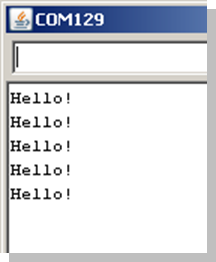
- Change Serial.print(“Hello!”) to Serial.println(“Hello!”).
- Upload the modified sketch and watch it print each “Hello!” message on a new line.